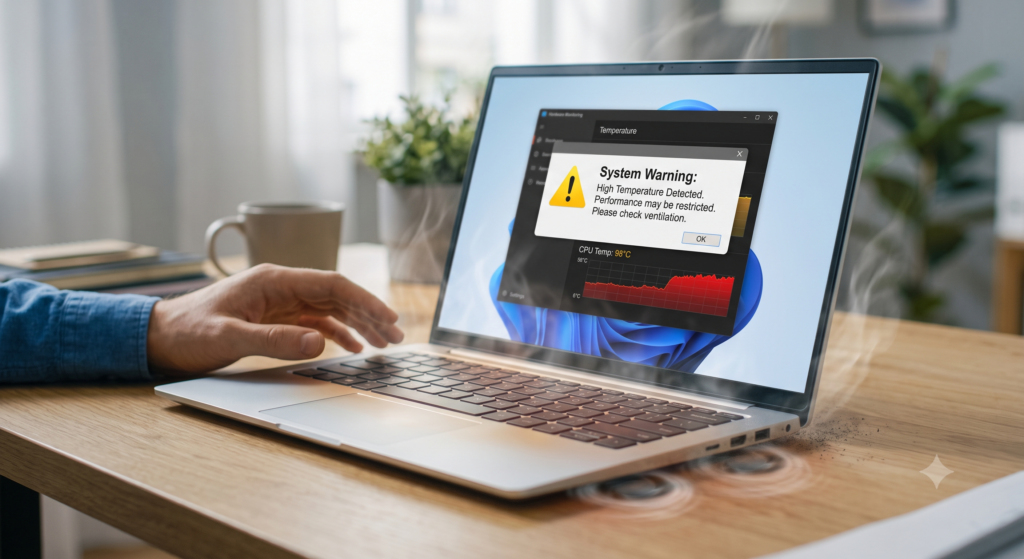
There’s a moment familiar to anyone who’s owned a laptop for more than two years. You’re doing something ordinary, a video call, a few browser tabs, maybe a game, and the fan spins up to a pitch that sounds less like cooling and more like distress. The underside becomes uncomfortable on your legs. And then everything slows down, not gradually, but all at once.
That last part is thermal throttling, and it’s the machine protecting itself. Understanding why it’s happening is the difference between a fix that lasts and a fix that doesn’t.
Why laptops struggle in the first place
A desktop computer has a large volume of air, multiple fans, and cooling hardware measured in kilograms. A laptop has to achieve the same thermal outcome in a chassis a couple of centimetres thick, using a fan the size of a coaster, with an air path that’s mostly obstructed by other components.
The engineering is genuinely impressive. It’s also operating with almost no margin. Which means small problems produce large consequences: a slightly restricted intake or slightly degraded thermal paste tips a system that was barely coping into one that isn’t.
Cause one: dust in the heatsink
This is the most common cause by a wide margin, and it’s rarely visible from the outside.
Air enters through intake vents, passes across the heatsink fins, and exits through exhaust vents. Over time, dust that gets past the intake accumulates on the fins, specifically, it forms a compressed mat on the intake side of the heatsink, where the fan is pushing air through.
Here’s the important part: you cannot usually see this mat from the exhaust vent. You can look at the vent, see clean-looking fins, and conclude the machine isn’t dusty. The blockage is on the other side.
This is also why blowing compressed air into the exhaust vent has limited effect. You’re pushing the dust mat further into the fins rather than removing it.
The proper fix: open the machine. Most laptops have a bottom panel secured by Phillips screws. Remove it, locate the fan and heatsink, and clean both. Hold the fan blades stationary while blowing air through them; letting a fan spin freely from compressed air can generate voltage that damages the motherboard.
If opening the machine isn’t an option, blow air into the exhaust vent while the machine is off, then vacuum near the intakes to catch what comes loose. It’s imperfect but better than nothing.
Cause two: degraded thermal paste
Between your processor and the heatsink sits a thin layer of thermal compound, filling microscopic gaps that would otherwise trap insulating air.
That compound dries out. In a laptop, subjected to repeated heat cycles in a confined space, it typically degrades meaningfully within three to five years. Once it’s dry and cracked, heat transfer drops sharply, and no amount of cleaning will help; the heat isn’t reaching the heatsink to be removed.
Symptoms that point here rather than dust: temperatures that spike very quickly under load, high temperatures even when the fan is clearly working hard, and a machine that was fine after a cleaning six months ago and isn’t now.
The fix: replace the paste. This requires removing the heatsink, cleaning both surfaces with isopropyl alcohol, applying fresh compound, and reassembling. It’s genuinely straightforward on many laptops and genuinely difficult on some ultrabooks. Watch a disassembly video for your specific model before committing.
If you’re not comfortable doing it, a repair shop will typically do this inexpensively. It’s one of the best-value laptop services available.
Cause three: blocked airflow
Most laptops draw air from underneath. Placing one on a bed, a sofa, a blanket, or a lap partially seals the intake, and the machine suffocates.
Even a desk isn’t always sufficient; the rubber feet provide only a few millimetres of clearance, and if they’ve fallen off, as they often do — the machine sits flat against the surface.
The fix: ensure clear airflow underneath. A simple stand, or even two small objects placed under the rear edge to create a tilt, improves intake noticeably. Cooling pads with fans help, though the elevation matters more than the fans in most cases.
Also check the exhaust isn’t pressed against a wall or monitor stand.
Cause four: software doing more than you realise
Before dismantling anything, confirm the heat has a physical cause rather than a computational one.
Open Task Manager, sort by CPU usage, and observe what’s running when the machine is idle. Background updaters, cloud sync clients, browser tabs with embedded video, indexing services, and antivirus scans all consume real processing power.
A particular offender: a browser tab playing video in the background, or a page with heavy scripting, can keep a core busy indefinitely.
Also check whether your machine is running an unexpected process entirely. Cryptocurrency mining malware exists, and its entire behaviour profile is “makes your computer hot for no visible reason.”
The fix: turn off unnecessary startup programs, close what you’re not using, and run a malware scan if the CPU usage doesn’t correspond to anything you recognise.
Cause five: power settings and turbo behaviour
Modern processors boost aggressively, drawing far more power than their base specification when they think they can. In a laptop, this frequently means the chip generates more heat than the cooling system can remove, hits its thermal limit, and throttles back, repeatedly, in a cycle.
The result is a machine that’s loud and hot while delivering performance that’s inconsistent rather than high.
The fix: limit maximum processor state. In Windows, under advanced power settings, reduce the maximum processor state to around 90 to 95 percent. This prevents the highest boost states, which are also the least efficient. The performance loss is often negligible, a few percent, while the temperature reduction can be dramatic.
For more control, undervolting reduces the voltage supplied to the processor while maintaining clock speeds, cutting heat significantly. Manufacturer support for undervolting varies, and some machines lock it out, but where available it’s one of the most effective interventions possible.
Cause six: fan failure or degradation
Fans wear out. Bearings develop friction, blades accumulate residue, and the fan gradually moves less air than it did while sounding like it’s working harder.
Symptoms: grinding or rattling noises, a fan that runs constantly at high speed, or a fan that intermittently stops.
The fix: replacement fans are widely available for most models and are usually inexpensive. Replacement is generally easier than thermal paste application, since the fan is typically the outermost component.
Cause seven: ambient conditions
Sometimes the machine is fine, and the room isn’t.
A laptop cannot cool below ambient temperature. In a room at 35 degrees, a processor that would run at 70 degrees in a cool room will run at 85. Nothing is broken.
This matters particularly in warm climates without air conditioning. If your laptop performs acceptably in the morning and struggles by afternoon, ambient temperature is the likely explanation, and the fixes are environmental rather than technical.
A diagnostic sequence
Rather than trying everything, work through this order:
Check the software first; it costs nothing and takes five minutes. Then check placement and airflow obstruction. Then monitor temperatures with a tool like HWiNFO to establish what’s actually happening under load versus idle. Then apply power limiting, which is reversible and free. Then clean the heatsink. Then, if all of the above has been exhausted, replace the thermal paste.
Working in this order means you’ll frequently solve the problem before reaching for a screwdriver.
What temperatures are normal
For context, since panic is common: modern laptop processors are designed to operate up to around 95 to 100 degrees Celsius. Brief excursions to those levels under heavy load are not damaging; they’re expected.
What’s problematic is sustained operation at the limit, particularly if accompanied by clock speeds dropping well below the processor’s base specification. Idle temperatures above 60 degrees also suggest something is wrong.
A healthy laptop typically idles in the 40s and peaks in the 80s under load. If you’re idle in the 70s, something in this article applies to you.
The longer view
Heat is the primary enemy of electronic longevity. Every degree of sustained operating temperature reduction extends component life, particularly for batteries, which degrade markedly faster when kept warm.
Cleaning a laptop’s cooling system once a year, and replacing thermal paste every three to four years, will keep a machine performing close to its original specification for far longer than most people expect. These are unglamorous maintenance tasks. They’re also the difference between a laptop that lasts three years and one that lasts seven.