I still remember the sound my first computer made. That soft mechanical clicking whenever it opened a folder, a tiny arm inside a metal box, physically swinging across a spinning platter to find my files. Back then I thought the noise meant the machine was working hard. Turns out it meant the machine was working slowly.
That box was a hard disk drive. And in 2026 it’s still on shelves, still being sold, still confusing people who just want to know which storage to buy. So let’s settle it, not with a spec sheet, but with the reasoning you’d actually use if a friend asked you over coffee.
The fundamental difference (without the jargon)
A hard disk drive has moving parts: spinning platters, a read/write head hovering above them, a motor keeping everything turning at 5,400 or 7,200 revolutions per minute. It’s basically a very precise record player that stores your data as magnetic patterns.
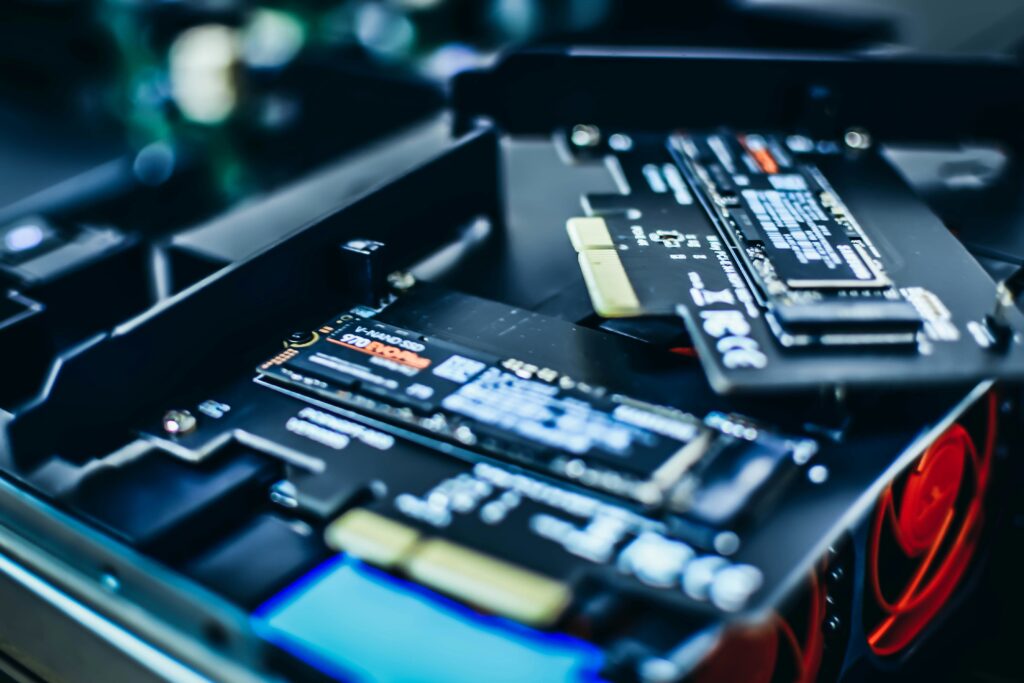
A solid-state drive has nothing that moves. Data sits in flash memory chips, and a controller decides where to put it and how to find it again. When you ask for a file, there’s no waiting for a platter to rotate into position. The data comes back electronically.
That one difference, moving parts versus none, explains almost everything that follows.
Speed: this isn’t a close race
Let me be blunt about the gap, because people who’ve never used an SSD tend to badly underestimate it.
A typical 7,200 RPM hard drive reads data at somewhere around 80 to 160 megabytes per second. A basic SATA SSD manages roughly 550 MB/s. An NVMe SSD, the small stick-shaped kind that plugs straight into your motherboard, regularly hits 3,500 MB/s, and newer PCIe 4.0 and 5.0 drives push far past that.
But raw transfer speed isn’t even the number that matters most. The real killer is random access time. Your operating system doesn’t read one giant file when it boots; it reads thousands of small, scattered ones. A hard drive has to physically reposition its head for each, costing precious milliseconds every time. An SSD repositions nothing.
That’s why a laptop that took two minutes to become usable after login now takes fifteen seconds. This isn’t marketing spin. For most people it’s the single most noticeable upgrade they’ll ever make to a computer.
Where hard drives still genuinely win
I don’t want this reading like an SSD advertisement, because hard drives haven’t become useless. They’ve become specialised.
Cost per gigabyte. This is the whole argument, and it’s a strong one. For the price of a 2TB SSD you can often buy 8TB of hard drive space. If you’re storing a large media library, years of RAW photographs, video project archives, or backups of other machines, that maths matters enormously.
Predictable failure behaviour. Hard drives usually warn you before they die. Clicking, grinding, sluggish reads, SMART warnings, you often get days or weeks of notice. SSDs tend to go more suddenly, sometimes with no symptom at all. Neither is safe without backups, but the warning is worth something.
Long-term cold storage. An unpowered SSD can slowly lose data over years as the charge in its cells leaks away. A hard drive sitting in a drawer is generally more reliable for archival purposes, assuming the environment is reasonable.
So the honest answer isn’t that SSDs “won” outright. They won the job of running your computer. Hard drives kept the job of storing your bulk data.
Understanding SSD types before you buy
If you’ve decided on an SSD, there’s one more fork in the road, and shops rarely explain it well.
SATA SSD (2.5-inch): Uses the same cable and connector as a hard drive. Capped at around 550 MB/s, because the SATA interface itself is the bottleneck. Ideal for upgrading older laptops and desktops, often the only option they support anyway.
NVMe SSD (M.2): A small stick that slots directly into the motherboard. Vastly faster, no cables, and less heat-management hassle in most cases. Needs an M.2 slot, which most machines from roughly 2017 onward have.
One thing that catches people out: not every M.2 slot is NVMe. Some older boards have M.2 slots that only run at SATA speeds. Check your motherboard manual before paying extra for a fast drive your machine can’t fully use.
Then there’s DRAM cache. Cheaper “DRAM-less” drives cut costs by dropping a small buffer chip. They’re fine for light use but slow down noticeably during sustained writes — copying huge folders, editing video, that sort of thing. If a drive’s price looks suspiciously low, this is usually why.
The setup most people should actually use
Here’s the practical recommendation, and it hasn’t changed much in years because it simply works:
Put a 500GB or 1TB NVMe SSD as your primary drive. Windows or macOS lives here. So do your applications, and your current projects, everything you touch daily.
Add a large hard drive as secondary storage if you need bulk capacity: movies, archives, game libraries you’re not currently playing, old project files.
Got a laptop with only one drive slot? Skip the hard drive entirely and buy the largest SSD your budget allows, then lean on an external drive or the cloud for overflow.
And if money is genuinely tight and you’re stuck choosing between a fast processor with a hard drive or a slower processor with an SSD, take the SSD. Every time. A modest CPU with fast storage feels dramatically better than a powerful CPU stuck waiting on a mechanical disk.
A note on endurance anxiety
People still worry that SSDs “wear out.” Technically true, flash memory cells have a finite number of write cycles. In practice, it’s a non-issue for normal users.
Modern drives are rated in TBW, or terabytes written. A typical 1TB consumer SSD might be rated for 600 TBW. If you wrote 50GB every single day, far more than most people manage, you’d need over thirty years to hit that limit. Your computer will be recycled long before the drive gives up.
Heavy video editors and people running database servers should pay attention to endurance ratings. Everyone else honestly doesn’t need to.
So, what should you buy?
Upgrading an existing machine that still boots off a hard drive? Buy an SSD. It’s the closest thing to a guaranteed satisfying upgrade in all of computing.
Building or buying something new? NVMe SSD for the system drive, no debate. Add hard drive capacity only if you genuinely have terabytes of data to store.
Archiving large amounts of media on a budget? Hard drives remain the sensible choice, and will for some time yet.
The clicking is gone. Most of us don’t miss it.