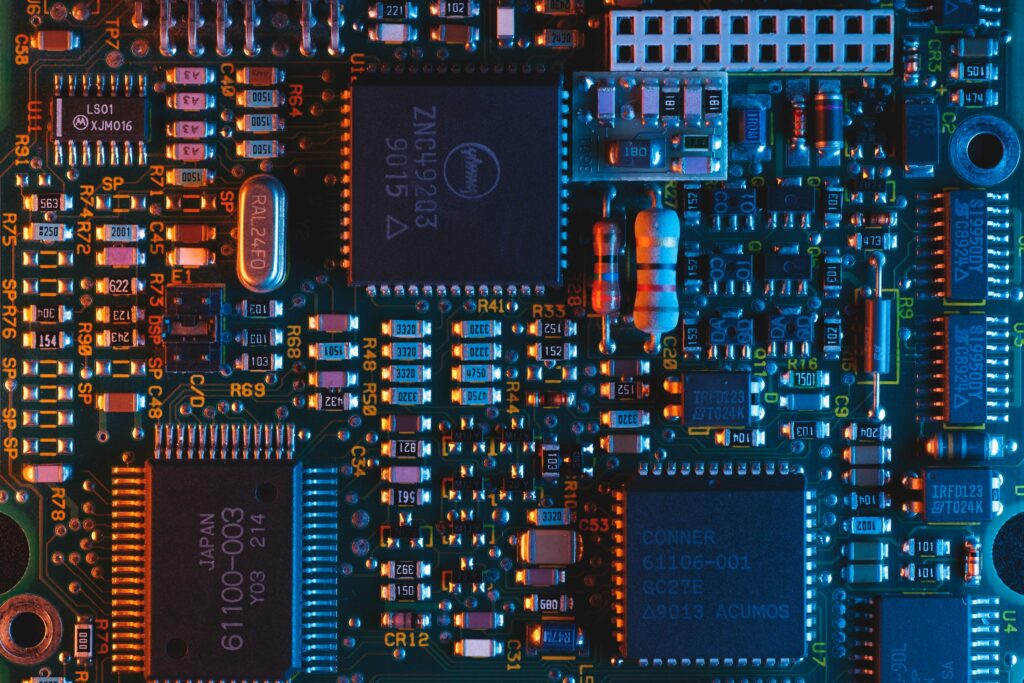
Motherboard listings read like someone spilled a bag of letters and numbers. B650, X670E, Z790, H610, B760, X870. Each one apparently means something; none of it is explained, and the price differences are substantial enough that guessing feels expensive.
Let’s translate.
What a chipset actually is
Your processor can only talk to a limited number of things directly. Typically that’s the memory, the primary graphics slot, and one or two fast storage slots. That’s it; the CPU has a finite number of connections available.
Everything else in your computer, additional USB ports, extra storage, network adapters, audio, expansion slots, connects through the chipset. The chipset is essentially a traffic controller sitting between your processor and the rest of the machine, taking one connection to the CPU and branching it into many.
So when you compare chipsets, you’re mostly comparing how much stuff you can connect and how fast those connections are. You are rarely comparing raw performance, which is a common misunderstanding.
The tier system
Both major processor manufacturers use a similar three-tier structure, with letters indicating position.
Entry tier (Intel’s H-series like H610, AMD’s A-series like A620): the minimum viable board. Fewer USB ports, limited storage slots, restricted or absent overclocking, sometimes limited memory speed support. Fine for an office machine or a very tight budget build. Frequently a false economy for anything more, because you’ll hit a limitation you didn’t anticipate.
Mid tier (Intel’s B-series like B760, AMD’s B-series like B650): the sweet spot for the vast majority of builds. Adequate connectivity, decent power delivery, memory overclocking support, usually two or three M.2 slots. This is where most people should be looking.
High tier (Intel’s Z-series like Z790, AMD’s X-series like X670): more PCIe lanes, more USB ports, more M.2 slots, robust power delivery, full overclocking support. Genuinely necessary if you’re running multiple expansion cards, a large array of drives, or pushing a high-end processor hard. Genuinely unnecessary for a standard gaming build.
Some AMD boards carry an “E” suffix, as in X670E. This indicates fuller PCIe 5.0 support across both the graphics slot and storage. Whether that matters depends on whether you’re buying PCIe 5.0 devices, and in most cases the practical benefit today remains modest.
The overclocking distinction
This one trips people up because the rules differ between manufacturers.
On Intel platforms, processor overclocking requires a Z-series board and a K-suffix processor. If you have either without the other, you can’t overclock the CPU. Memory overclocking, running RAM at its advertised XMP speed, is supported on B-series boards on recent generations, though it wasn’t always.
On AMD platforms, overclocking is available on B-series boards as well as X-series. This has been a consistent value advantage for AMD builders, and it’s worth knowing if you’re weighing platforms.
Worth noting: manual CPU overclocking has become less rewarding over the years. Modern processors boost aggressively on their own, and the headroom left for manual tuning is often marginal. Memory tuning and power limit adjustment usually deliver more than chasing clock speeds.
Power delivery: the specification nobody lists
Here’s something that matters more than the chipset letter and appears in almost no marketing material.
The VRM, voltage regulator module, converts the power supply’s 12 volts into the roughly 1.2 volts your processor needs. It does this constantly, under load, and it generates heat doing it. A weak VRM on a board paired with a power-hungry processor will overheat, and the board will reduce power to the CPU to protect itself. Your expensive processor then runs below its potential, and nothing on screen tells you why.
Two boards with the same chipset can have vastly different VRM quality. A budget B650 board and a premium B650 board are not equivalent.
If you’re pairing a high-end processor with a mid-tier board, look for reviews that specifically test VRM temperatures under sustained load. It’s the single most useful piece of research you can do on a motherboard, and it’s the one thing you cannot determine from the spec sheet.
PCIe lanes and slot sharing
Every board has a finite number of PCIe lanes to distribute. Manufacturers work around this by sharing; the same lanes get routed to multiple slots, and using one disables or slows another.
Common examples: filling the third M.2 slot turns off a SATA port. Installing a card in the second PCIe slot drops the graphics slot from x16 to x8. Using a particular M.2 slot reduces bandwidth to another.
All of this is documented in the motherboard manual, usually in a small table nobody reads until something mysteriously stops working. If you plan to fill several slots, read that table before purchasing. It’s five minutes that prevent a genuinely frustrating discovery.
Socket longevity
The socket is the physical connector your processor sits in, and it determines upgrade paths.
AMD has generally supported sockets across multiple processor generations, meaning a board bought today may accept a processor released two or three years from now. Intel has historically changed sockets more frequently, typically supporting two generations.
If dropping in a newer processor without replacing the motherboard appeals to you, this is worth factoring in. If you replace whole systems rather than upgrading components, it matters less.
Size formats
ATX is the standard size, with the most expansion slots and generally the best VRM cooling due to available surface area.
Micro-ATX is shorter, with fewer expansion slots but usually all four memory slots. Often excellent value, you lose slots most people never fill.
Mini-ITX is small and square, with two memory slots and one expansion slot. Necessary for compact builds, but you pay a premium for the engineering, and cooling requires more thought.
What to actually check before buying
Confirm the socket matches your processor. This sounds obvious and is still the most common mistake.
Check the manufacturer’s CPU support list for your specific chip. Newer processors on older chipsets may require a BIOS update to boot, which is difficult without a compatible processor to perform the update. Some boards support BIOS flashing with no CPU installed, a genuinely useful feature.
Count the ports you’ll actually use, USB ports, particularly. Running out is more annoying than it sounds.
Verify M.2 slot count and check whether they’re all NVMe or whether one is SATA-only.
Confirm rear connectivity includes what you need: Wi-Fi if you’re not running cable, appropriate audio outputs, video outputs if you’ll use integrated graphics.
The honest recommendation
For most people building most computers: buy a well-reviewed mid-tier board from a recognised manufacturer, at a price roughly ten to twelve percent of your total build.
Go higher only if you have a specific, identifiable need, heavy overclocking, multiple expansion cards, an unusual number of drives, or a top-tier processor that demands strong power delivery.
Go lower only if the build is genuinely light-duty and you’ve confirmed the board supports everything you intend to connect.
The motherboard is the component least likely to make your computer faster and most likely to quietly limit it. Pay attention here rather than spending money.