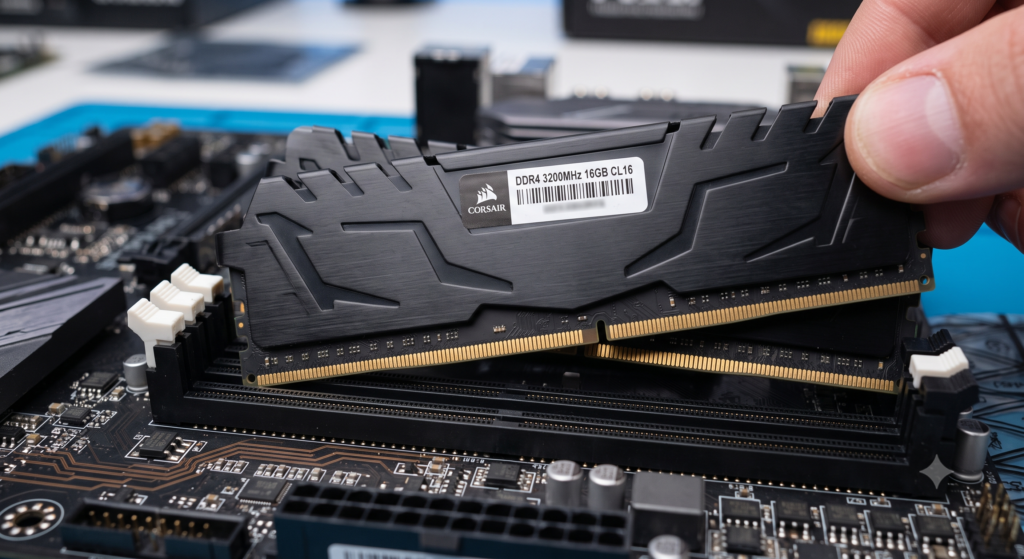
There’s a particular kind of frustration that comes from a computer that isn’t broken, exactly, but has stopped being pleasant to use. Everything still works. Programs still open. But there’s a hesitation before each click, a half-second pause where there didn’t used to be one, and switching between a browser and anything else feels like waking someone from a nap.
Nine times out of ten, that’s a memory problem.
What RAM actually does
Think of your storage drive as a filing cabinet and RAM as your desk. The cabinet holds everything you own. The desk holds only what you’re working on right now.
A bigger desk doesn’t make you a faster worker. But a desk that’s too small forces you to constantly put things away to make room, then fetch them back a minute later. That shuffling is what kills your productivity, not your own speed.
Your computer does exactly this. When RAM fills up, it starts moving data it isn’t actively using onto your storage drive, a process called paging or swapping. Storage is far slower than memory, even a fast SSD. So the moment your system starts swapping heavily, everything develops that sluggish, molasses quality.
More RAM doesn’t make your computer faster. It stops your computer from becoming slow.
That distinction matters, because people buy 64GB expecting a speed boost and are baffled when nothing changes.
8GB: the uncomfortable minimum
I want to be fair here, because “8GB is dead” has become a lazy talking point.
For genuinely light use, email, document editing, video streaming, a handful of browser tabs, light photo viewing, 8GB still functions. A well-maintained Windows 11 machine with 8GB and an SSD is perfectly usable for the person who checks their accounts, reads the news, and video-calls their family.
The trouble is that Windows itself consumes around 3 to 4GB before you’ve opened anything. Chrome with a dozen tabs can take another 2 to 3GB. Add a messaging app, a music player, and something running in the background from an update you don’t remember approving, and you’re at the ceiling.
Once you’re at the ceiling, you’re swapping. And swapping on 8GB is where that half-second hesitation comes from.
My honest position: 8GB is acceptable if you’re buying the cheapest machine available and your needs are genuinely modest. It is not a good place to be if the machine needs to last five years.
16GB: where most people should land
This is the comfortable answer for the overwhelming majority of users in 2026, and I don’t think that’s controversial.
With 16GB, you can keep thirty browser tabs open, run a video call, have Spotify going, edit photos in Lightroom, and switch between all of them without your system flinching. Gaming at 1080p or 1440p is entirely comfortable; most modern titles want 8 to 12GB for themselves, leaving room for the operating system and whatever’s running in the background.
More importantly, 16GB gives you headroom for the future. Software does not get lighter over time. The applications you’ll be running in 2029 will demand more than today’s do, and 16GB buys you a runway.
If someone asks me one question and wants one number, the answer is 16GB.
32GB: real uses and imagined ones
Here’s where I’d like to be blunt, because a lot of money gets wasted at this tier.
You genuinely benefit from 32GB if you edit 4K video, particularly with multiple layers, effects, or colour grading. Video editing is one of the few consumer workloads that will happily consume every gigabyte you offer it.
You also benefit if you run virtual machines, since that means handing a chunk of RAM to a second operating system while your main one still needs its share; if you work with large datasets in Python, R, or similar, loading multi-gigabyte files into memory to analyse them; if you do 3D rendering, CAD work, or complex compositing; or if you stream while gaming, since encoding video in real time alongside a running game is a legitimately demanding combination.
You probably don’t benefit if you just play games. Even in 2026, very few titles meaningfully use more than 16GB. Some ultra-textured open-world games are starting to push it, but the gains from 16 to 32 are usually a few frames, not a transformation.
You also don’t benefit much if your workload is mostly browser tabs, browsers are memory-hungry but also memory-flexible, releasing what they’re not using when pressure builds. And “future-proofing” is the weakest reason of all: RAM prices fluctuate, adding memory later is one of the easiest upgrades to perform, and buying 32GB today to dodge a possible upgrade in four years is frequently the more expensive path.
Speed, channels, and the things nobody mentions
Capacity gets all the attention, but two other factors matter more than people realise.
Dual-channel configuration. Your memory controller can talk to two sticks simultaneously, roughly doubling bandwidth. Two 8GB sticks will outperform a single 16GB stick, sometimes by a meaningful margin, especially on laptops and desktops using integrated graphics that share system memory. If you’re buying 16GB, buy it as two sticks of 8GB, not one of 16.
This is one of the most common mistakes I see in prebuilt machines. Manufacturers ship a single stick to leave an upgrade slot open, and the buyer never realises they’re running at half the bandwidth they paid for.
Speed and latency. DDR5 memory is rated in MT/s, 5600, 6000, 6400 and upward. Faster memory helps, but with sharply diminishing returns for most tasks. AMD’s Ryzen processors are somewhat more sensitive to memory speed than Intel’s, and integrated graphics benefit noticeably. For a system with a dedicated graphics card doing ordinary work, the difference between 5600 and 6400 is small enough that price should decide it.
Do check your motherboard’s supported speeds before buying. Memory faster than your board officially supports will run slower, and you’ll have paid for nothing.
How to diagnose your own situation
Rather than guessing, look at what your machine is actually doing.
On Windows, open Task Manager, go to the Performance tab, and select Memory. Use your computer normally for a while, open everything you’d typically have running on a busy day, then check the graph. If you’re consistently sitting above 80 percent, you’re short on memory. If you’re hovering at 50 percent, more RAM will change nothing.
On macOS, Activity Monitor has a Memory Pressure graph. Green means you’re fine. Yellow means you’re managing. Red means you needed more memory some time ago.
This five-minute check is more useful than any general recommendation, including mine.
The short version
Buy 16GB in two sticks. Unless you edit video, run virtual machines, or work with large datasets, in which case buy 32GB and don’t think about it again.
And if you’re currently on 8GB and wondering why your computer feels tired: check that Task Manager graph before you assume you need a whole new machine. A memory upgrade often costs a fraction of a replacement and solves the exact problem you were about to spend far more money on.